Showing posts with label Pentaho. Show all posts

Friday, May 30, 2014

Pentaho CDE: Create your custom table

Pentaho Dashboards CDE: Create your custom table

You want to implement something in your dashboard that is not covered by the out-of-the-box dashboard components? Luckily, with Pentaho CDE the world is open: CDE makes use of the standard web technologies (CSS, JavaScript, HTML), so theoretically you can implement whatever is in the realm of these technologies. Obviously you will need some basic knowledge of these technologies (setup is not as easy any more as filling out some config dialogs), but the possibilities are endless. In this post I’ll briefly talk you through how to source some data and then to create a custom table with it (which you can easily do with one of the CDE components as well, but that’s not the point here … imagine what else you could do):

  1. In CDE, register a Datasource. In example create a sql over sqlJndi datasource, provide a Name i.e. qry_generic_select, choose SampleData for JNDI and specify following query:

     SELECT customername, customernumber, phone FROM customers
    

  2. In the component section, add a Query Component. This component is most commonly used for displaying simple results, like one number in a dashboard (i.e. max temperature). Here we will use this component to retrieve a bigger result set.
  3. Click on Advanced Properties.
  4. For the Datasource property specify the datasource you created in step 1 (i.e. qry_generic_select)
  5. Provide a name for the Result Var. This is the variable, which will hold the output data of your datasource.
  6. Write a Post Execution function, in example:

     function() {
          document.getElementById('test').innerHTML = JSON.stringify(select_result);
     } 
    
  7. We will only use this function for now to test if the query is working. Later on we will change it.

  8. The setup so far should look like this:
  9. In the Layout Panel create a basic structure which should at least have one column. Name the column test as we referenced it already in our JavaScript function.
  10. Preview your dashboard (partial screenshot):
  11. Let’s change the Post Execution function to return only the first record:

    function() {
         document.getElementById('test').innerHTML = JSON.stringify(select_result[0]);
    }
    

    And the preview looks like this:

  12. Let’s change the Post Execution function to return only the first entry from the first record:

    function() {
         document.getElementById('test').innerHTML = JSON.stringify(select_result[0][0]);
    }
    

    And the preview looks like this:

  13. Let’s extend our Post Execution function to create a basic table:

    function() {
      var myContainer = document.getElementById('test');
      var myTable = document.createElement('table');
      var myTr = document.createElement('tr');
      var myTd = document.createElement('td');
    myContainer.appendChild(myTable).appendChild(myTr).appendChild(myTd).innerHTML = select_result[0][0];
    }
    

    Do a preview and make use of your browser’s developer tools to see the generated HTML:

  14. Ok, now that this is working, let’s add some very basic design. Click on Settings in the main CDE menu:
  15. Choose bootstrap from the Dashboard Type pull down menu: Click Save.

  16. Back to the Post Execution function of the Query Component: Now we want to make this a bit more dynamic: For every data row must be enclosed by <td> and within each data row each data value must be enclosed by <td>. We also have to add the <tbody> element to make a proper table. And we will apply the Bootstrap Striped Table design:

    // Simple function preparing the table body 
    
    function() {
        var myContainer = document.getElementById('test');
        var myTable = document.createElement('table');
        var myTBody = document.createElement('tbody');
        var myTr = document.createElement('tr');
        var myTd = document.createElement('td');
    
        //myTable.id = 'table1';
        myTable.className = 'table table-striped';
    
        myContainer.appendChild(myTable).appendChild(myTBody);
    
        for(var i = 0; i < select_result.length; i++) {
            myContainer.lastChild.lastChild.appendChild(myTr.cloneNode());
            for(var j = 0; j < select_result[i].length; j++) {
                myText = document.createTextNode(select_result[i][j]);
                myContainer.lastChild.lastChild.lastChild.appendChild(myTd.cloneNode()).appendChild(myText);
            }
        }
    }
    

    You can find a text version of this JavaScript code a bit further down as well in case you want to copy it.

  17. Do a preview now and you will see that we have a basic table now:

    Note: In case you are creating this dashboard as part of a Sparkl plugin and you are having troubles seeing the bootstrap styles applied (and are sure that the problem is not within your code), try to preview the dashboard from within your Sparkl project endpoint listing (which seems to work better for some unknown reason):

  18. One important thing missing is the header. Let’s source this info now. The Query Component provides following useful functions, which you can access within Post Execution function:

    this.metadata
    this.queryInfo
    this.resultset
    

    To get an idea of what is exactly available with in the metadata object, you can use in example this function:

      document.getElementById('test').innerHTML = JSON.stringify(this.metadata);
    

    Which reveals the following:

  19. This is the function preparing the full table (header and body):

    // function preparing the full table (header and body)
    
    function() {
    
        var myContainer = document.getElementById('test');
        var myTable = document.createElement('table');
        var myTHead = document.createElement('thead');
        var myTh = document.createElement('th');
        var myTBody = document.createElement('tbody');
        var myTr = document.createElement('tr');
        var myTd = document.createElement('td');
    
        //myTable.id = 'table1';
        myTable.className = 'table table-striped';
    
        //document.getElementById('test').innerHTML = JSON.stringify(this.metadata);
        myMetadata = this.metadata;
    
        myContainer.appendChild(myTable).appendChild(myTHead).appendChild(myTr);
    
        for(var s = 0; s < myMetadata.length; s++){
            myHeaderText = document.createTextNode(myMetadata[s]['colName']);
            myContainer.lastChild.lastChild.lastChild.appendChild(myTh.cloneNode()).appendChild(myHeaderText);
        }
    
        myContainer.lastChild.appendChild(myTBody);
    
        for(var i = 0; i < select_result.length; i++) {
            myContainer.lastChild.lastChild.appendChild(myTr.cloneNode());
            for(var j = 0; j < select_result[i].length; j++) {
                myText = document.createTextNode(select_result[i][j]);
                myContainer.lastChild.lastChild.lastChild.appendChild(myTd.cloneNode()).appendChild(myText);
            }
        }
    
    }
    
  20. And the preview looks like this:

Voilá, our custom boostrap table is finished. This is not to say that you have to create a table this way in CDE: This was just an exercise to demonstrate a bit of the huge amount of flexibility that CDE offers. Take this as a starting point for something even better.

Sunday, February 23, 2014

Sparkl: Create your own app for the Pentaho BI/BA Server

Installing Sparkl

This is just a very brief walkthrough, Francesco Corti has already published an excellent step by step tutorial here, so please have a look there for detailed instructions):
From Home > Marketplace install Sparkl (and any dependencies like CDE etc).
Once installed, restart the biserver.

Initial App Setup

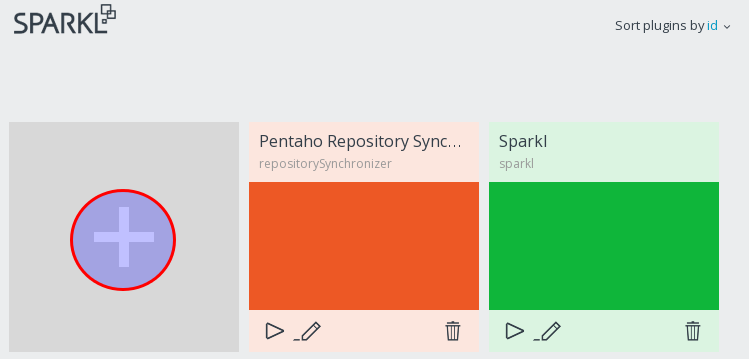
Let’s create our first app: Tools > Sparkl. Click on the BIG plus icon, then on CREATE:
Assign a unique name and click Create Plugin:
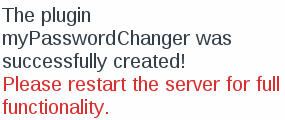
Then you are informed that:
So do as you are told ;) and restart the server.


If on next login your Pentaho User Console looks fairly blank and you find this error message in the log:


21:23:55,460 ERROR [GenericServlet] GenericServlet.ERROR_0004 - Resource /data-access/resources/gwt/D9EA02CD60EF4F8D3A2BD2613D9BB9A8.cache.html not found in plugin data-access


… then clear the browser cache and all problems should be solved.


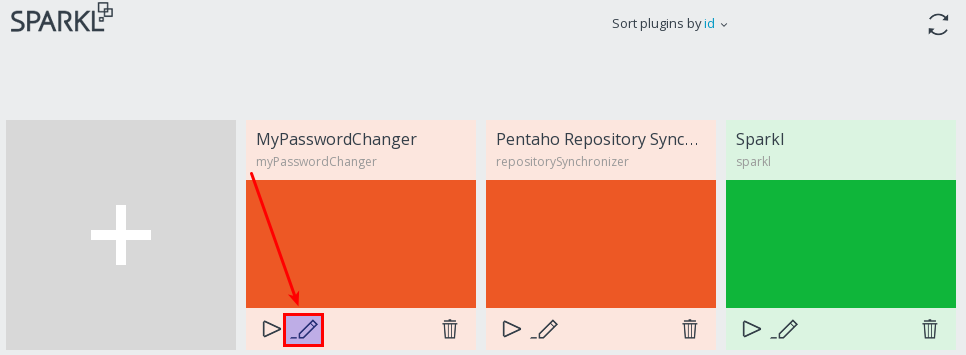
So once you have your normal PUC back, go to Tools > Sparkl. You should see your app now:
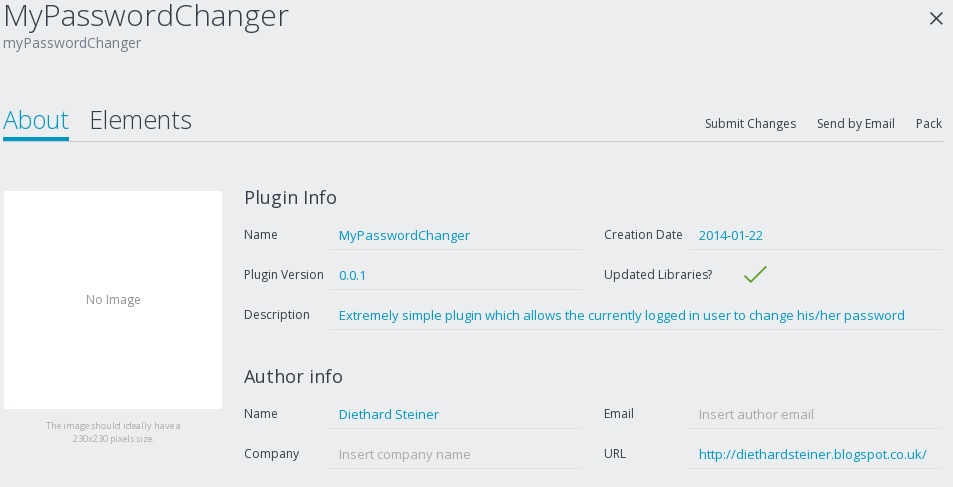
Click the Edit icon. Time to provide some app details:
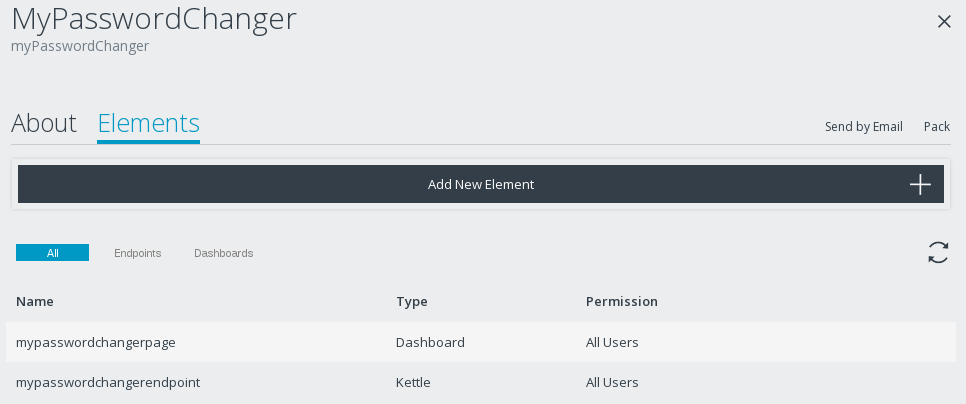
Next click on Elements, where we can define the endpoints. Endpoints can either be CDE dashboards [frontend] or Kettle transformations [backend].  


Click on Add new Element. Add 1) a dashboard and 2) a Kettle transformation:
All your app files are stored under:
pentaho-solutions/system/myPasswordChanger


The Pentaho Kettle job can be found in:
pentaho-solutions/system/myPasswordChanger/endpoints/kettle/mypasswordchangerendpoint.ktr


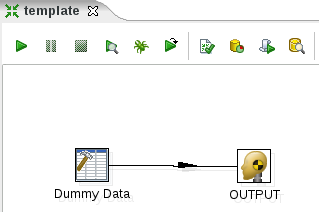
I am sure you can’t wait to have a look at this Kettle transformation, which has just been created for you … well, let’s go ahead and fire up Spoon and open up this file:


Still excited? Well, you didn’t expect everything to be done for you … did you? That’s why your special insider knowledge is still required here! But more about this later on.

Creating the dashboard


As you are probably aware of by now, Sparkl makes use of two very popular tools: CDE and Kettle. So if you have ever used CDE to create dashboards before, editing the Sparkl dashboard should be quite familiar to you!
Ok, let’s edit the dashboard:


We will use a very simple approach here (the aim here is not to create a fancy looking dashboard, but just some very simple prototype):


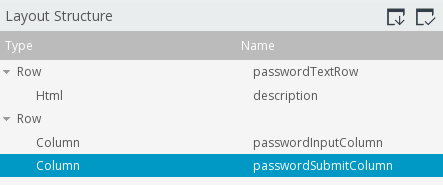
  1. Create a row called passwordTextRow.
  2. With passwordTextRow still marked, click on the Add HTML icon.
  3. Mark the HTML row and add this HTML snippet on the right hand side:
    <p>Specify your new password:</p>
  4. Then add a new row called passwordInputRow. For this row, add two columns, one called passwordInputColumn and the other one passwordSubmitColumn. The layout should now look like this:
  5. Save the dashboard and switch to the Component Panel.
  6. Create a parameter: Generic > Simple Parameter. Call it passwordParameter.
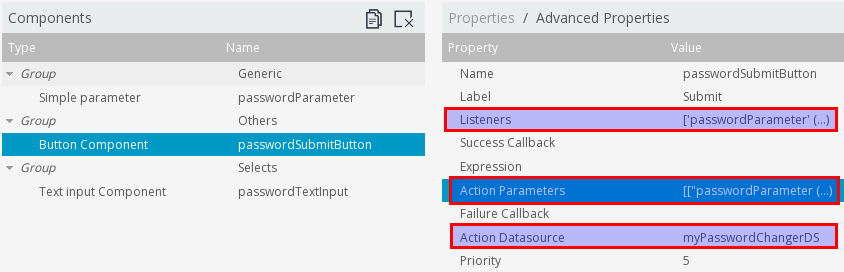
  7. Add a button: Others > Button Component. Call it passwordSubmitButton. For Label specify Submit and for HtmlObject passwordSubmitColumn (just press CTRL+Space to retrieve the values of the available HtmlObjects):
  8. Add an Input field: Select > TextInput Component. Name it passwordTextInput, assign the Parameter passwordParameter and the HtmlObject passwordInputColumn to it:
  9. Now switch to the Datasource Panel. Remove the SQL dummy query.
  10. From the left hand side open MYPASSWORDCHANGE Endpoints and choose mypasswordchangerendpoint Endpoint. For this datasource specify the name myPasswordChangerDS in the Properties section:
  11. Switch back to the Components Panel. In the Components area select the Button Component. Click on Advanced Properties.
    • For Action Parameters specify passwordParameter as [["passwordParameter"],["passwordParameter"]] and
    • For Action Datasource specify myPasswordChangerDS. At the time of this writing there were considerations about moving the datasource property to main properties area (instead of advanced properties), so this might have changed by the time you read this.
    • For Listeners specify passwordParameter

  1. Save the dashboard.
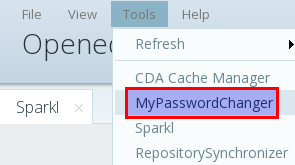
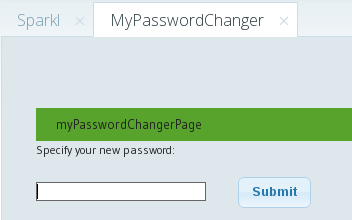
  2. Let’s see how our Sparkl plugin looks so far. Choose Tools > MyPasswordChanger:
    And you should see something like this:

Preparing the Kettle transformation

You can find a detailed documentation of the REST endpoints here (download the doc file). Harris also wrote an excellent blog post about it.


Extract the documentation zip file (which you just download) and then open the index file in your favourite web browser.


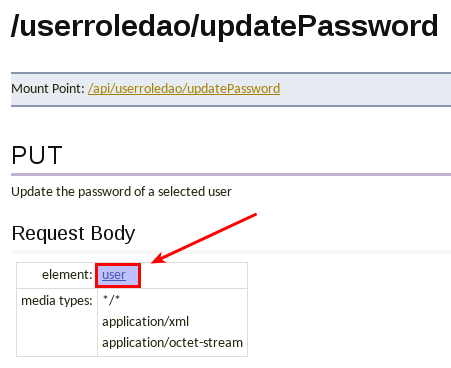
Click on UserRoleDaoResource from the REST Resources list, then choose /userroledao/updatePassword:
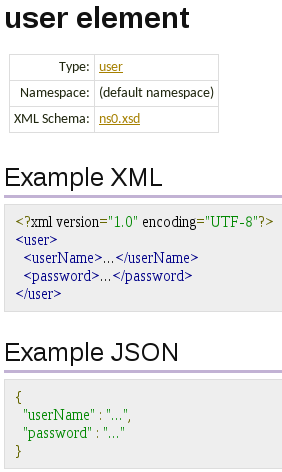
Let’s inspect the request body element a bit closer, so click on the user link:
So this tells us that we can either send an XML or JSON document containing the userName and password to this REST endpoint.


It’s a good idea to first experiment a bit with the REST services by using the popular command line tool curl:


Let’s start first with a simple get request. Note the use of --user to specify the authentication details:


$ curl --user admin:password -i -H "Accept: application/json" -H "Content-Type: application/json" http://localhost:8080/pentaho/api/userroledao/users


HTTP/1.1 200 OK
Server: Apache-Coyote/1.1
Set-Cookie: JSESSIONID=7A850427D26D6F6AABA2B5BC3C7F40D7; Path=/pentaho
Content-Type: application/json
Transfer-Encoding: chunked
Date: Tue, 28 Jan 2014 20:56:49 GMT


{"users":["suzy","pat","tiffany","admin"]}


Let’s get some role info (here we supply one parameter):


$ curl --user admin:password -i -H "Accept: application/json" -H "Content-Type: application/json"  http://localhost:8080/pentaho/api/userroledao/userRoles?userName=admin


HTTP/1.1 200 OK
Server: Apache-Coyote/1.1
Set-Cookie: JSESSIONID=92D98FAF9C5D23CF0ACADAB8655E287D; Path=/pentaho
Content-Type: application/json
Transfer-Encoding: chunked
Date: Tue, 28 Jan 2014 20:55:29 GMT


{"roles":["Administrator"]}


So now let’s try the more complicated task of updating the password: We have send along some XML document. This can be accomplished by using PUT with the -d option (d for data):


$ curl -i --user admin:password -H "Content-Type: application/xml" -H "Accept: application/xml" -X PUT -d '<?xml version="1.0" encoding="UTF-8"?><user><userName>admin</userName><password>test123</password></user>' http://localhost:8080/pentaho/api/userroledao/updatePassword


HTTP/1.1 200 OK
Server: Apache-Coyote/1.1
Set-Cookie: JSESSIONID=3AC126B2276665B4F0FE655EC29A4964; Path=/pentaho
Content-Length: 0
Date: Tue, 28 Jan 2014 21:15:08 GMT


Alternatively you could create an XML file:
$ vi update.xml


Copy and paste:
<?xml version="1.0" encoding="UTF-8"?>
<user>
 <userName>admin</userName>
 <password>password</password>
</user>


Then issue this command:
$ curl -i --user admin:password -H "Content-Type: application/xml" -H "Accept: application/xml" -X PUT -d @update.xml http://localhost:8080/pentaho/api/userroledao/updatePassword


If you try to log on to PUC now, you will have to use your new password!


Enough playing around with curl! We have established that updatePassword REST API is working as expected.


The next step is to prepare a basic working Kettle transformation with the same functionality:
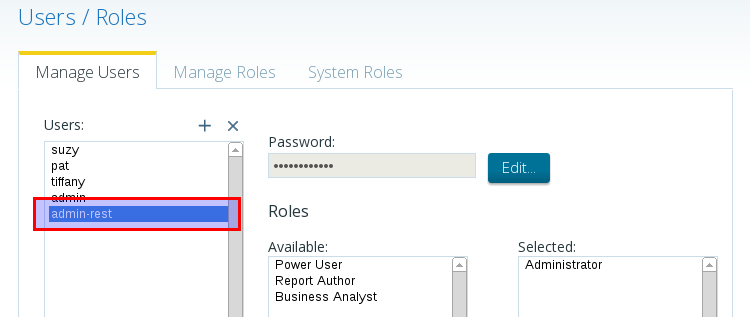
  1. Create a new biserver-user with admin rights which we can use just for authentication purposes.
  2. Fire up Spoon and open mypasswordchangerendpoint.ktr
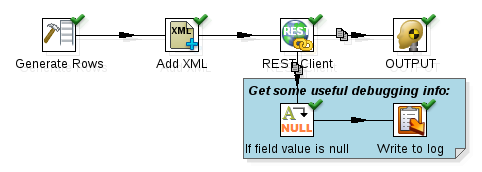
  3. Amend the transformation to look like the one shown in the screenshot below:
  4. Double click on Generate Rows. Set the Limit to 1. Create three fields:
Field
Type
Value
url
String
http://localhost:8080/pentaho/api/userroledao/updatePassword
user
String
your username
password
String
your password
  1. Double click on Add XML. Into the Output Value field type userXML and into the Root XML element field user:
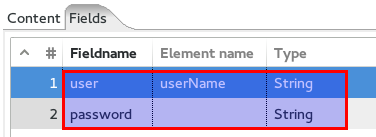
  2. Next click on the Fields tab. Configure as shown below:
  3. Double click on the REST client step. Configure as outlined below:
    • General:
      • URL name field: url
      • HTTP method: PUT
      • Body field: userXML
      • Application Type: XML
    • Authentication
      • HTTP Login: admin-rest
      • HTTP password: test123 (note: use the details of the specially created rest admin user here!)
  4. Finally configure the logging step to output the essential infos.
  5. Run the transformation.


When finished, restart the server (which is the official way to deploy your transformation).


Go to Tools > MyPasswordChanger. Click the submit button.


In a terminal window watch the Tomcat log:
[dsteiner@localhost biserver-ce]$ tail -f tomcat/logs/catalina.out
2014/01/29 19:03:49 - Write to log.0 - =======================
2014/01/29 19:03:49 - Write to log.0 - === KTR REST RESULT ===
2014/01/29 19:03:49 - Write to log.0 - =======================
2014/01/29 19:03:49 - Write to log.0 -
2014/01/29 19:03:49 - Write to log.0 - result = Password was changed successfully!
2014/01/29 19:03:49 - Write to log.0 -
2014/01/29 19:03:49 - Write to log.0 - ====================
2014/01/29 19:03:49 - OUTPUT.0 - Finished processing (I=0, O=0, R=1, W=1, U=0, E=0)


Watch out for the REST call result message. Here we see that the password was changed successfully. You don’t believe it? Log out of PUC and back in (with the new password).


Ok, now we know that this is working. Let’s make everything a bit more dynamic:
  • username: CPK server side parameter (currently logged in user)
  • password: supplied by CDE dashboard
  • URL: IP and port
  • authentication username
  • authentication password


We will not test the transformation any more in Spoon.

How to pass a standard parameter from a dashboard to a Kettle job or transformation

As you remember, we defined earlier on the passwordParameter parameter in CDE. To pass the value of this parameter to a Kettle job or transformation, simply define the parameter in your job/transformation as you would normally do:


  1. Open mypasswordchangerendpoint.ktr in Spoon.
  2. Right click on the canvas and choose Transformation settings.
  3. Specify the a new parameter called passwordParameter. As you might have guessed, this parameter name has to be exactly the same as defined in the dashboard:
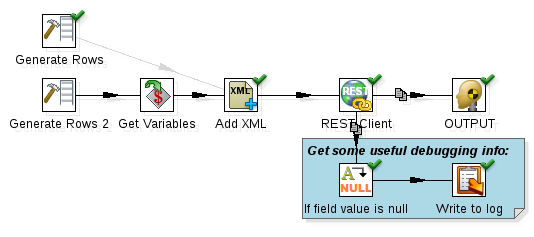
  4. Change the transformation to look like this one:
    Disable the hob from the original
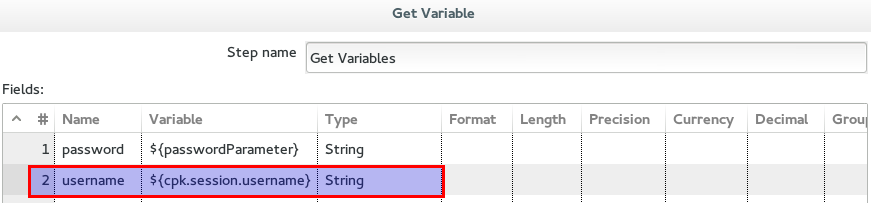
    Generate Rows step to Add XML. Add a new Generate Rows and a Get Variables step. For now the new Generate Rows should only supply the url and user values: Right now we just want to test if the password parameter is passed on properly. Open up the Get Variables step and create a new fields called password which references the variable ${passwordParameter}:
    This setup enables us to use the
    passwordParameter originating from the dashboard in our Kettle transformation stream.
  5. Just for testing purposes write the password field to the log (so that we see that the value is actually passed on). Change the Write to Log step config respectively.

Server-side Parameters

Kettle Properties

As you might well know, Kettle transformations/jobs running on the server have access to the kettle.properties file as well as long as everything is properly configured. If you have everything installed on one machine and are using the default settings, there is actually no additional setup on the biserver side required. The biserver will automatically access ~/.kettle/kettle.properties.


So for the REST authentication (server IP and port) I just defined a parameter in the kettle.properties file like this:
VAR_PENTAHO_BISERVER_URL=http://localhost:8080/pentaho
VAR_PENTAHO_BISERVER_USER=admin-rest
VAR_PENTAHO_BISERVER_PW=test123

Sparkl server side parameters

Sparkl currently provides these server-side parameters:
Parameter
Description
cpk.plugin.id
the plugin ID
cpk.solution.system.dir
the pentaho solution system dir (full path)
cpk.plugin.dir
the plugin dir (full path)
cpk.plugin.system.dir
the plugin system dir (full path, this isn't used very often though and it might become deprecated)
cpk.webapp.dir
webapp dir (full path)
cpk.session.username
session username
cpk.session.roles
session roles (string with session authorities separated by commas)


Marco Vala explains:


Additionally, if you add a parameter named
cpk.session.SOMETHING
CPK will try to find a session variable named SOMETHING and "injects" its current value
(this is one way only, just for reading session variables)


There is also a handy parameter named
cpk.executeAtStart
If its default value is set to "true", CPK will execute that Kettle when plugin starts

Amending our transformation


We have to implement following changes:
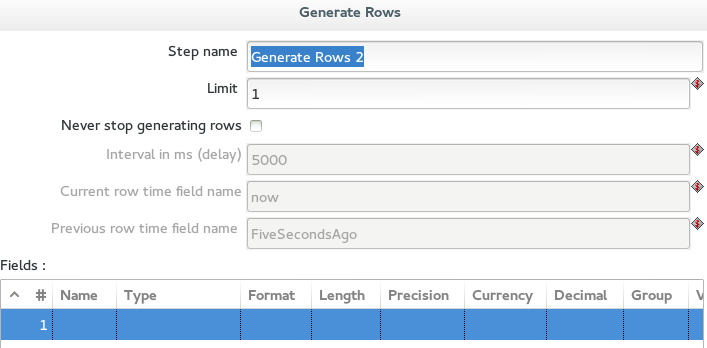
  1. Remove any fields from the new Generate rows step. It should be blank:
  2. Open up the Get Variables set and configure it as shown in the screenshot … add the username variable referencing cpk.session.username:
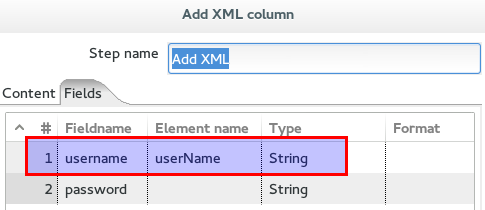
  3. Adjust the Add XML step:
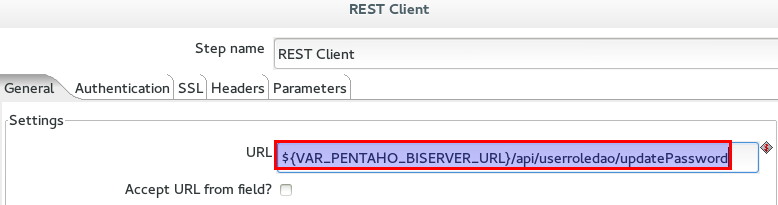
  4. Change the config of the REST Client step to not read any more the URL from the field but instead key it into the URL config field like this:
    ${VAR_PENTAHO_BISERVER_URL}/api/userroledao/updatePassword
  5. Also, in the Authentication reference the parameters we just set up: ${VAR_PENTAHO_BISERVER_USER} and ${VAR_PENTAHO_BISERVER_PW} respectively.
  6. Save and then restart the server.
  7. Then test again the dashboard and watch the Tomcat log.


Oh well, oh well, all is not perfect right now … you wonder why we actually have to authenticate - this file is already on the server - right? Rest assured, Pedro’s team is already working on this feature!


So with the solution created so far every user should be able to change their password. The core functionality is provided, we will not cover the rest in this tutorial.

Closing words

This is certainly an ugly looking app, the password should not be shown, there has to be a confirmation page etc … basically a long list of tasks still to do. The point here was not to create a fully functional, nice looking Pentaho Sparkl app, but to build a bare bones prototype: Demonstrating how the two main components - Kettle and CTools - can work together; enabling us to create a wide variety of apps for the Pentaho BI-Server ecosystem. Go and explore this exciting new world now and create some fancy Sparkl apps!