Showing posts with label Talend Open Studio. Show all posts

Monday, December 30, 2013

Talend Open Studio Cookbook (Book review)

I had some time in the holidays to read the recently published book "Talend Open Studio Cookbook" by Rick Barton. I have to admit, I was quite impressed by this book!
I can highly recommend it to everyone who is looking into getting started with Talend Data Integration but also to someone who has some experience with it, as there are quite a lot of useful tips and tricks mentioned as well.
The book takes a very practical approach, which ensures that you are up-to-speed in a very short amount of time. It covers all the essentials (from creating data integration jobs to finally scheduling them) plus covers some more advanced topics as well.

Overall the book is very well structured and brings across best practices in a very easy to understand manner. All the exercises focus on creating only the required functionality, so you start off with an already partially build data integration job and only fill in the required pieces, which makes it indeed a very good experience. The accompanying files all worked very well and I have to applaud the author for providing both the "partially build" job files as well as the completed ones.

In a nutshell: A highly recommended book - go out and get it!

Wednesday, March 21, 2012

Talend Open Studio: Retrieve PostgreSQL error messages


Retrieve PostgreSQL error messages

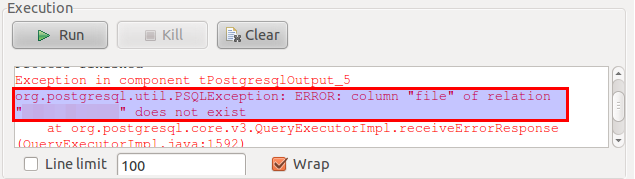
When using the PostgresqlOutput component, sometimes you will only see “Call getNextException to see the cause” in the error log in case something goes wrong:
So how do we get a detailed error message?
The solution is to switch off the batch mode. Simply click on the Advanced settings of the PostgresqlOutput component and untick Batch size:


If you cannot see Use Batch Size, scroll all the way down!

Now save your job and rerun it: You should now get a useful error message:


Now you have the right info to solve the problem! Once the problem is solved, don't forget to switch on the batch mode again.

Monday, February 20, 2012

Talend Open Studio: Populating a date dimension


Populating a date dimension

Date dimensions are an essential part of a data warehouse. Usually they are only populated once. Scripts can be created on the database side (as outlined here), but if you are working on various projects involving a variety of databases, it is more efficient to create just one ETL job which can be used to populate any database.

In this tutorial we will have a look at creating such an ETL job with Talend Open Studio for Data Integration. We will create a basic date dimension which you can then extend even further. In order to follow this tutorial, the reader should be familiar with the basic functionality of Talend Open Studio.

Our date dimension will look like this one (partial screenshot):


The primary key of the dimension will be an integer representation of the date, which saves us the hassle of looking up the key when we transform the fact data.

Open Talend Open Studio for Data Integration and create a new job called populate_date_dimension. First we will define a variable called start date, because we will use this job in various projects and we might require a different start date each time:

Click on the Context tab and then on the + button to add a new context variable. Give it the name myStartDate of type Date and define a value for it.


Next add a tRowGenerator component to the design area and double click on it to activate the settings dialog. The idea is to create X amount of rows: The first row will hold our start date and each subsequent row will increment the date by one day.


  1. Click the + button to add a new column. Name it date and set the type to Date.
  2. Click in the Environment variables cell on the right hand side and then you will see the parameters displayed in the Function parameters tab on the bottom left hand side.
  3. Define the number of rows that should be generated in Number of Rows for RowGenerator.
  4. In the Function parameters tab set the date parameter value to context.myStartDate. This will ensure that the context variable which we defined earlier will be used.
  5. Set the nb parameter to Numeric.sequence(“s1”, 1, 1) - 1. Use the expression builder for a more convenient setup. This will create a sequence which we will use to add days to our start date. The reason why we subtract 1 at the end is because we want to keep our start date.
  6. Set the dateType parameter value to “dd”. This ensures that days will be added to our date.
  7. Click on the Preview tab and check if the result set looks as expected.
  8. Click Ok to close the component settings.


Now add a tMap component and create a row from the tRowGenerator to the tMap component. Double click the tMap component:


  1. Click the + button on the right hand side to create a new output table.
  2. Add new columns to the output table and for each of them define a specific date format using this approach: Integer.parseInt(TalendDate.formatDate("yyyyMMdd",row1.date)) for integer values and TalendDate.formatDate("MM",row1.date) for string values. Have a look at the Java SimpleDateFormat specs to get an understanding of all the formatting options. You will spend now some time setting all the various date formats up.
  3. Java SimpleDateFormat doesn’t provide a quarter format, hence we have to create our own in the form of a ceiled devision / covered quotient: (Integer.parseInt(TalendDate.formatDate("M",row1.date))+3-1) /  3   
  4. Click Ok.


Add a database output component of your choice (in my case I used one for PostgreSQL) and create a row from the tMap to the database output component. Double click the database output component and provide all the necessary settings. That’s it: Now you can run the job and examine the data in your table.

Saturday, February 18, 2012

Talend Open Studio: Scheduling and command line execution


Talend Open Studio: Scheduling and command line execution

In this tutorial we will take a look at how to export a Talend Open Studio ETL job to an autonomous folder and schedule the job via crontab. In order to follow this tutorial, the reader should be familiar with the basic functionality of Talend Open Studio for Data Integration.


How to export a job


Right click on your job and choose Export job.


In the export settings define:
  • the export folder and file name
  • the Job Version
  • set the Export type to Autonomous Job
  • tick Export dependencies
  • define the Context and tick Apply to children
Click on Finish and your job will be exported.


How to execute the job from the command line


Navigate to the folder where the zip file was exported to and unzip it. Then navigate to:


<jobname>_<version>/<jobname>

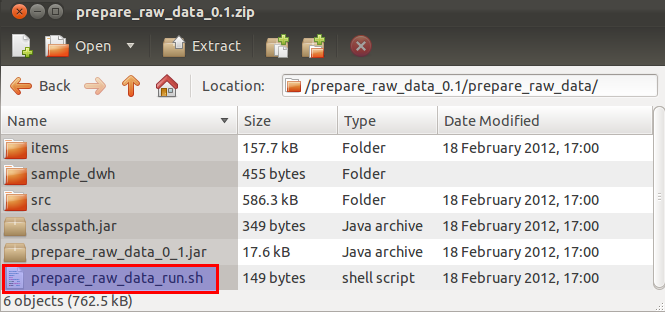
Within this folder you will find an executable shell and/or batch file:


Open this file in a text editor:


Note that the context is defined as a command line argument. It is currently set to the value which you specified on export, but you can change it any time to another value here.

To execute the job on the command line simply navigate to this folder and run:
sh ./<jobname>_run.sh


How to execute a job with specific context variables

As you might have guessed, the approach is very similar to the one shown above, we just add command line arguments:

sh ./<jobname>_run.sh --context_param variable1=value1 --
context_param variable2=value2


How to change the default context variables

If you ever need to change the value of any of your context variables, you can find the property file for each context in:

<jobname>_<version>/<jobname>/<projectname>/<jobname>_<version>/contexts/

Which in my case is:

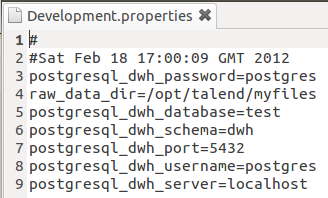
Open one of them to understand how they are structured:

As you can see it is extremely easy to change these values.


How to schedule a job

If you make use of context variables regularly, then it is best to include them directly in the *_run.sh or *_run.bat file. Just open the file with your favourite text editor and add the variables after the context argument similar to this one:
Ideally though, especially if you are dealing with dates, you want to make this more dynamic, like this one:
On Linux use Crontab to schedule a job:

crontab -e

And then set it up similar to the one shown below:

On Windows you can use the Windows Scheduler. As this one has a GUI, it is quite straight forward to set it up and hence will not be explained here.